
In the Windows explorer address bar enter –
\\wsl$

In the Windows explorer address bar enter –
\\wsl$

While running a cron job in Linux, I sometimes get this error and I had been struggling to solve this until I came across this post.
Although that particular post mentions the cause being Vagrant, mine was due to a cron job.
First the solution …
.profile under home folderOpen ~/.profile
Replace the following line –
mesg n || true
with
tty -s && mesg n
The reason for this is given very well in the post linked above.
Continue reading
Every time I need to create, modify, grant sudo access to users in Linux, I have to search for it.
This is a list of the commands I’ve used in the past.
Will keep updating this so that I don’t have to load a search page every time!
All commands below are run as root user. If I’m not the root user, I need to prefix them with sudo!

As mentioned in the previous post, if you need to run cron jobs in linux, knowing how to debug them via mail is really important.
By the way, mail is the older program, the link above is to the man page of mailx which is the newer program created relatively recently, in 1986!
Navigating through messages in the mailbox is quite a challenge as I found.
So I decided to create a list of the commands which I used most frequently and found useful.
Continue reading
So, we set up a project on a new Digital Ocean droplet and the cron jobs started failing.
Not just that, the log file that we had set up to track the cron was showing up empty!
After a lot of head scratching, I had a look at /var/log/syslog
Starting up another computer on a network itself is such a fascinating idea! For me, it literally feels like magic!
There are so many things involved. The computer which needs to be started (or woken up) has to have the capability, both at the hardware and the software level.
Also the computer doing the waking needs to send a magic packet!
When I initially heard this, I honestly thought this was a joke of some kind. A magic packet? Really?
Continue reading
I discovered that there are many different ways to run a program as root.
The most well known way is to use the sudo command
$> sudo run_as_root_program.sh
This, of course, prompts for the password which you need to then enter.
But what if we need to run the program itself from another program so that the password prompt doesn’t appear?
I came across this requirement recently and it took quite a few iterations before I got it right.
Continue reading
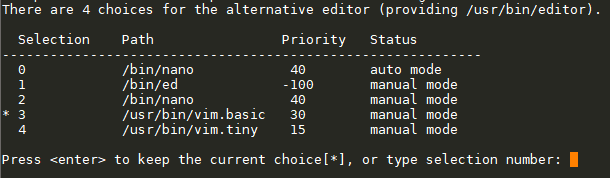
For whatever reason, the default editor to change sudo permissions, which pops up when visudo is entered, is set to nano. I don’t have a clue why an option can’t be given on first use to change the editor.
The way to change it is to run the update-alternatives command
$> sudo update-alternatives --config editor
Which gives us these options.

Select 3 for vim.basic and we’re back to sanity.

When I’m setting up a linux system, since it’s not very often, I have to keep looking up the basic commands for user setup.
I had started putting them in a text file and now it’s reached here!
Continue readingBy default when crontab-e is run for the first time, we get the choice to set the editor.
The selected editor is stored in a file ~/.selected_editor
However, if the selected editor needs to be changed later, the command is –
select-editor
To reset or unset the selected-editor completely, we can remove the ~/.selected_editor file completely.
Ref: https://www.howtogeek.com/410995/how-to-change-the-default-crontab-editor/
Copyright © 2026 the möbius trip
Theme by Anders Noren — Up ↑